.gif)
sam wpisac' imie jake hcesz Miec' we emailah kaj ludzie bydoom dostowaci emaile np. Minister Internetu
Once you have downloaded and installed Outlook Express, open the application. Once the application is open and running, go to "Tools", then select "Accounts" from the pull-down menu. You should now see a pop-up window labeled "Internet Accounts".
From the pop-up window, select "Add", then "Mail" from the top left side of the window.
Now proceed to Step #2 for details on how to setup this new POP3 account
in Outlook Express.
-----------------------------------------------------------------------------------------------------------------------------
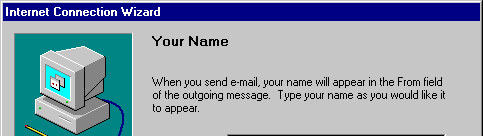
You should now see a pop-up window on your screen labeled "Internet Connection Wizard". This screen will be asking for your name or your organization's name. This name will show up on all mail sent from the e-mail address you are setting-up. Fill out the requested information, below is an example of what you should see if you use your name.
sam wpisac' imie jake hcesz Miec' we emailah kaj ludzie bydoom dostowaci
emaile np. Minister Internetu
-----------------------------------------------------------------------------------------------------------------------------
The next pop-up window will ask for your Internet E-mail Address.
This is the e-mail address you are setting-up thorugh Outlook Express.
We have automatically generated the screen capture below to reflect what
you should enter if you are setting up your Master POP3 account. If this
is not the case, enter any other POP3 account you have already setup @republikasilesia.com.
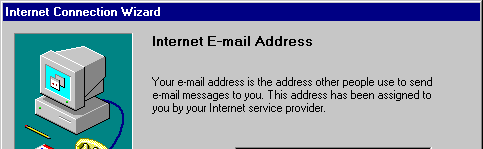
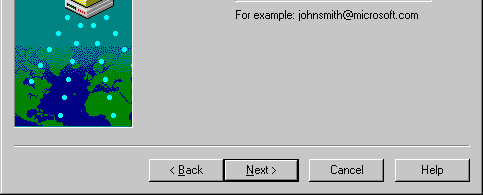
Sam wpisac' swooj email adress np. sigi@republikasilesia
---------------------------------------------------------------------------------------------------------------------------
The next screen will ask for your E-mail Server Names. Simply follow
the screen below and fill-in the fields excactly as shown below. Make sure
POP3 is selected for your incoming mail server.
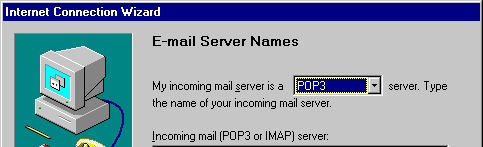

Nastympny krok - wpisac' w te miejsca na powyrzszym uobrozku:
POP3
Incoming mail :mail.republikasilesia.com
Outgoing mail: smtp.republikasilesia.com
---------------------------------------------------------------------------------------------------------------------------
The Internet Mail Logon screen will ask for your login for this
POP3 account, which is just [email protected] for this POP3
account. After you enter this inforation, be sure to enter your password
as well. Do NOT check "Log on using Secure Password Authentication (SPA)".
After you have entered in this information, proceed to Step #6.
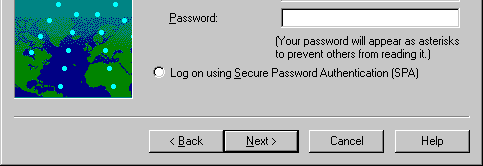
Sam wpisac' swooj internetowy kod
-----------------------------------------------------------------------------------------------------------------------------
The next screen will ask you for a Friendly Name, which is just a way to identify this POP3 account from any other POP3 accounts you have setup through Outlook Express. Although you can use anything you want, we suggest using the actual POP3 account name, since it is unique and the easiest way to identify each POP3 account in Outlook Express. Once you have completed this, proceed to Step #7.
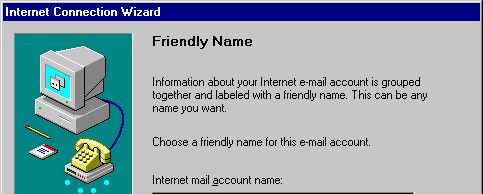


Sam wpisaci Imie jake hcesz ( co bydzie kole twoigo emaila- np Sigi
------------------------------------------------------------------------------------------------------------------------
The next screen will be labeled "Choose Connection Type". Simply follow
the directions on the screen and select from one of the 3 choices. If you
are using an Internet Service Provider, you will probably select the first
choice. If you are connecting to us from an internal network, you should
probably choose the middle selection.
Jak mosz normalne telefooniczne pouoonczynie - to zaznacz tak jak je
na uobrozku.
---------------------------------------------------------------------------------------------------------------------------------
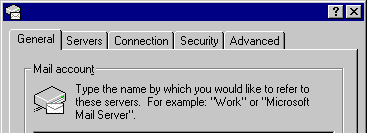
You should now be back at the window where you started, which now shows
the Friendly Name of your new POP3 account. This window should be labeled
"Internet Accounts". Now select "Properties" from the left side of the
window. Below is the screen that should automatically pop-up on your screen.
 republikasilesia.com

 Sigi Wosnitza

 [email protected]
 [email protected]
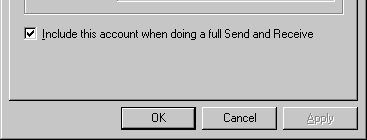
Wpisac' swoje dane jak we uobrozku
republikasilesia.com
Ted Jeczalik
You can name your settings whatever you wish, we would recommend using your domain name. The "Name" field should already be filled in, and now you may want to specify your business name or organization name in the "Organization" field as well.
The "E-mail Address" field should already be filled in and we recommend you fill-in the same information in the "Reply Address" field.
You have now successfully setup your POP3 account in Outlook Express!
For more advanced customization features of Outlook Express, click here
to visit the official website for Outlook Express by Microsoft Coporation.